facebook share button: Quick Guide to Add & Customize
Step-by-step guide to add, customize, and optimize a facebook share button on your site with practical tips and advanced options.
A simple Facebook Share button is one of those classic web tools that’s easy to overlook. But don't be fooled—it's still a powerhouse for getting your content seen. It’s a straightforward way for visitors to blast your website content directly onto their Facebook timelines, and that single click can do wonders for your organic reach and traffic.
So, Why Does the Facebook Share Button Still Matter?
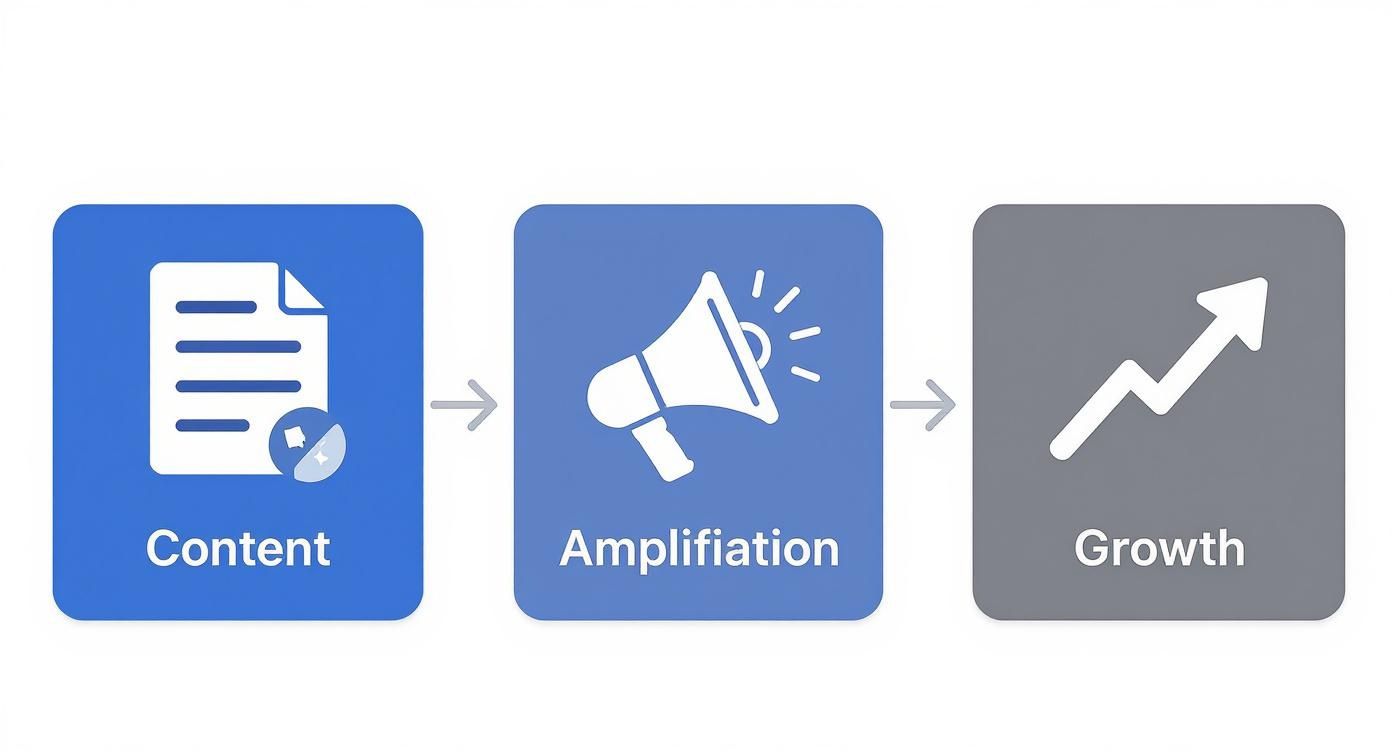
In a world full of complex social media tactics, the humble Share button remains a key player for one simple reason: it plugs you directly into the biggest social network on the planet. Think of it as a gateway to exponential growth, turning your casual readers into your most passionate brand advocates.
When someone shares your article, your latest product, or an event you're hosting, it's more than just a link. It’s a personal endorsement. That share pops up on their friends' feeds with an implied stamp of approval, creating instant social proof. For a small e-commerce store, a shared product can kick off a flurry of sales. For a blogger, one viral share could mean thousands of new readers overnight.
Getting Your Content Out There Organically
The real magic here is frictionless amplification. Instead of just relying on your own posts or expensive paid ads, you're empowering your audience to do the marketing for you. Every share exposes your work to a fresh, targeted network of people who already trust the person who shared it. It’s authentic, effective word-of-mouth marketing at its finest.
If you’re just getting started on the platform, learning how to set up a strong Facebook page is the essential first step. It builds the foundation for an audience ready to hit that share button.
The real power of the share button lies in its ability to transform passive readers into active promoters. It's the most direct path to earning authentic, user-generated distribution for your content.
This process builds its own momentum. More shares lead to more eyeballs, which drives more traffic back to your site, and the cycle continues. First introduced way back in 2011, this button quickly became a must-have for publishers. And with Facebook now home to over 3 billion monthly active users, it’s still a critical piece of the puzzle for anyone hoping to go viral. Just check out the latest Facebook stats to get a sense of that massive potential audience.
Adding the Facebook Share Button to Your Website
Getting a Facebook Share button onto your website is a lot simpler than you might think. You don't need to be a coding wizard because Facebook’s own tools do most of the heavy lifting. The key is their Code Configurator, which spits out the exact code snippets you need.
Your first stop is the Facebook for Developers portal. Look for the Share Button Configurator—it's a straightforward tool that lets you customize how the button looks and acts before you even think about touching your site's code. This is where you'll nail down the button's core behavior.
Using the Code Configurator
The configurator gives you a few simple but crucial options to play with. First, you'll need to plug in the exact URL you want people to share. This could be your homepage, a specific blog post, or a hot new product page.
You also get to pick the layout. Do you want the share count displayed above the button (box_count)? Or maybe off to the side (button_count)? You can choose whatever fits your site’s design best.
Here's a peek at what the configurator looks like. The best part is the live preview that updates as you make changes.
As you can see, you get to visualize exactly how the button will look before you commit. Once you're happy with your settings, just hit "Get Code."
Implementing the Code Snippets
The tool will then hand you two separate pieces of code. Don't worry, I'll walk you through where they go.
The first snippet is the JavaScript SDK. This little chunk of code is the engine that makes the button work. Ideally, you should place it right after the opening <body> tag on your website. The good news? You only have to do this once per page.
The second snippet is the button itself. This is the code you'll drop in the exact spot you want the Facebook Share button to show up.
- For WordPress users: This is as easy as adding a "Custom HTML" block in your post or page editor and pasting the code.
- For Shopify store owners: You might edit your theme’s
product.liquidfile to get the button to appear on all your product pages.
After you've placed both code snippets and saved your changes, the button will be live on your website. Just like that, you’ve made it easy for your visitors to become your biggest advocates.
Customizing Your Share Button for Maximum Impact
Sure, a default share button gets the job done. But a thoughtfully customized one? That’s where you start seeing real results.
When you go beyond the standard settings, you can weave the button into your site's design so it feels less like a clunky plugin and more like an intentional, valuable feature. This is all about taking the reins and controlling both how your button looks and how it performs.
One of my favorite tricks is using a bit of CSS to style the container around the button. You can tweak the margins, add a subtle border, or even create a floating sidebar that keeps the share option in view as people scroll. That constant visibility makes a huge difference—it catches users right when they're most engaged and likely to share.
Controlling the Share Preview with Open Graph Tags
Ever shared a link on Facebook and wondered how it magically pulls the right image, title, and description? That’s not magic—it's Open Graph meta tags.
These are little snippets of code you pop into the <head> section of your website. They act like a set of instructions, telling Facebook exactly how to display your content in the news feed.
If you skip this, Facebook is left to guess. It might grab a random image from your sidebar or an irrelevant chunk of text, which can absolutely torpedo your click-through rate. For a professional sharing experience, properly configured Open Graph tags are non-negotiable. They ensure every share looks like a polished, compelling ad for your content.
Think of Open Graph tags as the digital packaging for your content. A generic preview might get scrolled past, but a sharp, on-brand preview with a great image and a punchy title practically begs to be clicked.
To get this right, you'll need to implement a few essential tags.
Essential Open Graph Meta Tags for Facebook Sharing
Here’s a quick rundown of the key Open Graph tags you’ll want to configure. Getting these right is the difference between a sloppy share and a professional one.
| Tag | Purpose | Example |
| :-- | :-- | :-- |
| og:title | Sets the headline of your content when shared. | The Ultimate Guide to Facebook Marketing |
| og:description | A brief, engaging summary that appears below the title. | Discover proven strategies to boost your reach. |
| og:image | The specific image you want displayed. Ideal size is 1200x630 pixels. | https://yourdomain.com/images/featured-image.jpg |
| og:url | The canonical URL of the page being shared. | https://yourdomain.com/blog/facebook-guide |
By defining these tags, you get to control the narrative. You're making sure that every time someone hits your Facebook share button, the post that shows up on their feed is visually appealing, informative, and perfectly aligned with your brand. That’s how you maximize the impact of every single share.
So, How Do You Actually Get More Shares?
Just sticking a Facebook share button on your page and hoping for the best isn't much of a strategy. To really get visitors to click that button, you need to stop thinking about the code and start thinking about people. The real secret is understanding why someone shares content in the first place.
Think about it: people share things that make them look smart, funny, or helpful to their friends. Your job is to package your content in a way that taps directly into those motivations. Sure, a big button at the top of an article is visible, but a floating sidebar button that follows the reader down the page, paired with a compelling call-to-action? That's what really works, because it’s there right when they feel most engaged.
Going Beyond Just "Being There"
Here's a tough pill to swallow: most people completely ignore traditional share buttons. In fact, some data shows that only 0.6% of desktop users and a tiny 0.39% of mobile users ever click on them. You can discover more insights about social sharing engagement to see just how passive users have become.
That data doesn't lie. It means we have to be proactive. Instead of just hoping for clicks, it's time to start asking for them.
- Be direct with your prompts. Add a little text right next to your button, like, "Know a colleague who needs this? Share it!"
- Time it right. Place a share option right after someone completes a quiz, signs up for a newsletter, or finishes a helpful guide. They're already feeling good about your content.
- Make it easy to share. Design your content with built-in shareable moments, like powerful stats or pull-quotes. You can even whip these up quickly using our social media content templates to give them a professional look.
The best sharing strategies don’t just offer the tool; they create a genuine reason to use it. Visibility is a good start, but a smart, timely prompt is what actually earns the click.
Of course, share buttons are just one piece of the puzzle. To really move the needle, it helps to understand the bigger picture. If you're looking to level up your entire digital game, it's worth exploring broader marketing automation best practices.
How to Measure Your Sharing Success
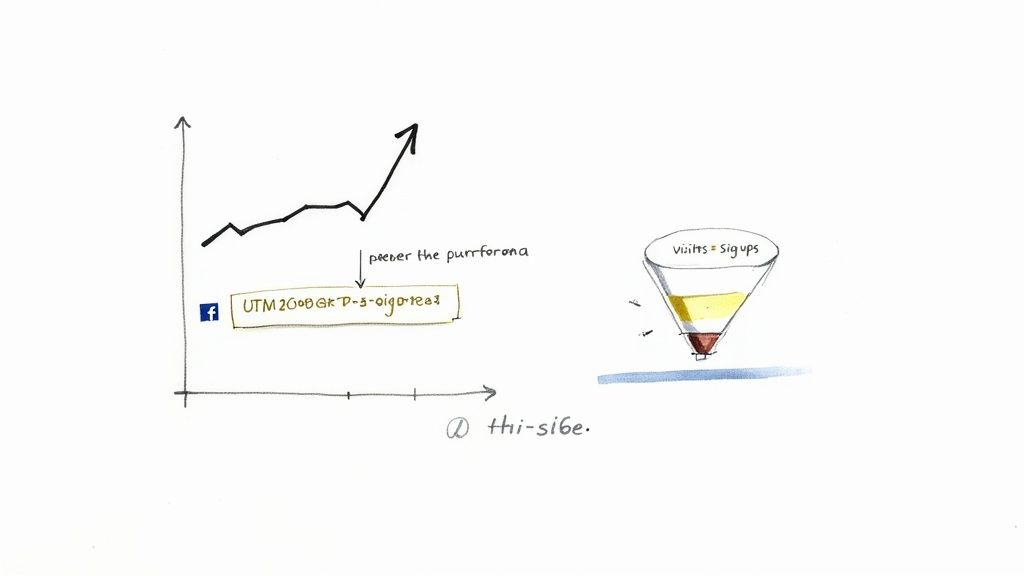
So, you've added a Facebook Share button to your page. Great first step, but the real work starts now. How do you know if it's actually doing anything? You need to track its performance to understand the ROI, and that all starts with knowing where your traffic is coming from.
The best way I’ve found to do this is with UTM parameters. They might sound technical, but they're really just simple tags you tack onto the end of your URL. When you add them to your share button's link, you can jump into Google Analytics and see exactly who came to your site from a Facebook share. It's a game-changer for tracking which shares lead to actual visits, sign-ups, or sales.
Key Metrics to Monitor
When you start digging into the data, understanding your engagement rate is a solid baseline. But to get the full picture of your Share button's impact, you’ll want to keep an eye on a few specific numbers:
- Referral Traffic: How many people are actually landing on your site from those shared Facebook links?
- Conversion Rate: Of that traffic, how many people are taking the action you want them to, like buying a product?
- Top Shared Content: Pinpoint exactly which pages or blog posts are getting passed around the most.
Don’t just count shares; measure what those shares do. A single share that drives ten new customers is far more valuable than a hundred shares that result in zero traffic.
Let's be realistic: a Facebook Share button is a great tool, but organic reach on Facebook is tough. The average engagement rate for a link post is a tiny 0.03%. This makes tracking your own results absolutely critical.
By combining your UTM data with Facebook's own Page Insights, you can build a clear picture of what’s resonating with your audience and prove the button is worth its digital real estate. If you want to dive deeper into refining your strategy, these social media manager tips offer some great advanced techniques.
Common Facebook Share Button Questions Answered
Working with a Facebook Share button can sometimes throw a few curveballs your way. Let's walk through some of the most common headaches people run into so you can get your button working perfectly.
One of the most frequent frustrations is sharing a link, only to see the wrong image or an old title pop up. Sound familiar? This is almost always an issue with your Open Graph (OG) meta tags. If the og:image or og:title tags are missing or incorrect in your page's code, Facebook has to take a wild guess at what to display.
After you add or fix your OG tags, your first stop should always be Facebook's official Sharing Debugger tool. Just pop your URL in there, and it forces Facebook to clear its cache and grab the fresh, correct info for all future shares.
Common Technical Questions
Here are a couple of other technical questions that pop up all the time.
-
Can I use a custom icon? Absolutely. While the official generator is quick and easy, you can create a custom share link yourself. Simply attach the URL
https://www.facebook.com/sharer/sharer.php?u=[YOUR_URL]to any image or button on your site. This gives you total control for a fully branded look. -
Does the button slow down my site? It can, but the impact is usually tiny. The button’s script loads directly from Facebook's servers. The best practice here is to load the script asynchronously. This lets all of your page content render first without having to wait on Facebook, so your users won't notice a thing.
Knowing what to look for ahead of time makes troubleshooting so much easier and ensures your share button works flawlessly from day one.
Ready to create compelling, time-sensitive posts that grab attention? Countdown Timer App makes it a breeze to add live, auto-updating countdowns directly to your Facebook page—perfect for launches, sales, and events. Start creating for free today!